

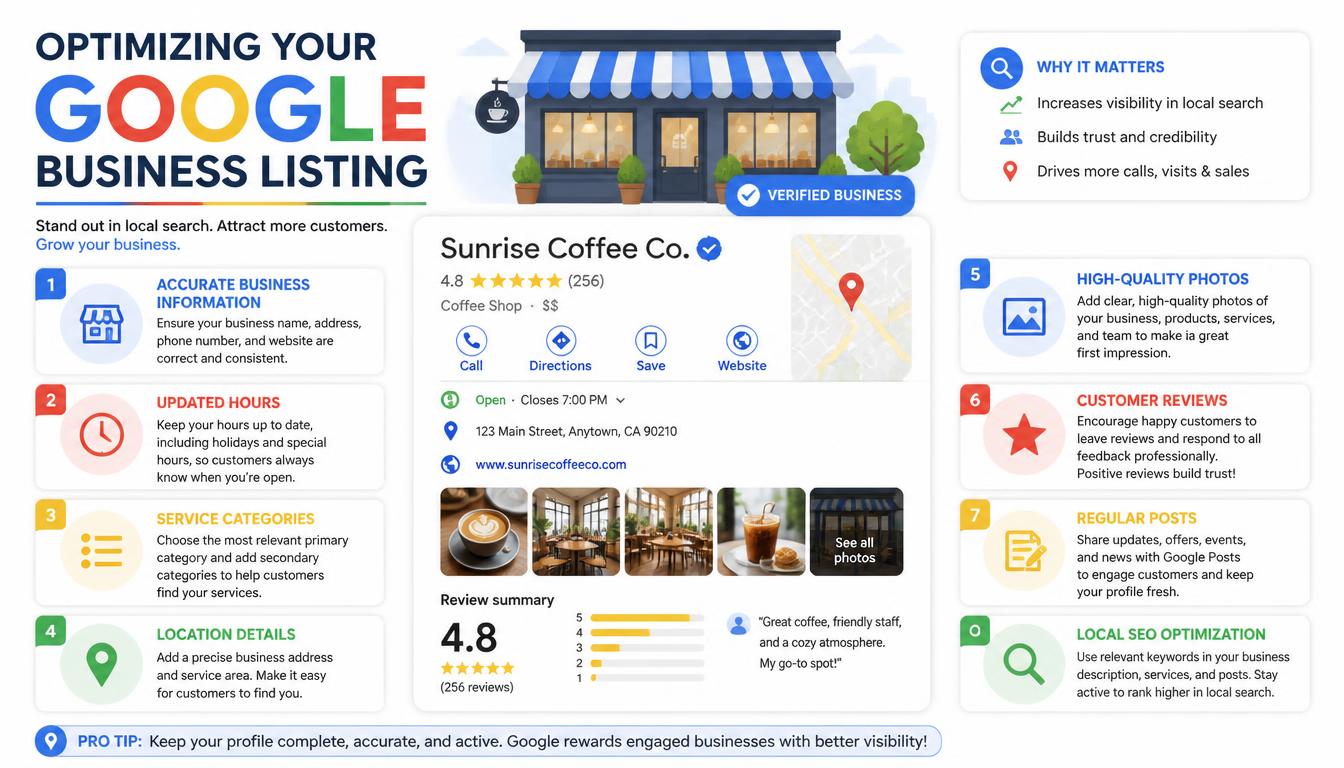
A Google My Business listing—now called a Google Business Profile—is your business’s free presence on Google Search and Google Maps. It shows your name, address, phone number, hours, reviews, photos, and more when customers search for you or businesses like yours.
Setting up and optimizing your Google My Business listing is one of the most important steps in local SEO. Without a complete, verified listing, your business is unlikely to appear in the local pack or Google Maps results.
What Is a Google My Business Listing?
A Google My Business listing is a public profile that represents your business on Google. It appears in:
- Google Search results (right-side knowledge panel and local pack)
- Google Maps
- Google Business Profile mobile app
The listing includes core business details such as name, address, phone number, website, category, hours, photos, and customer reviews. It is free to create and manage.
Who Needs a Google My Business Listing?
You need a Google My Business listing if:
- You serve customers at a physical location (storefront, office, restaurant, clinic)
- You travel to customer locations (plumber, electrician, cleaner, delivery service)
- You run a hybrid business with both a storefront and service area
- You want to appear when people search for businesses near them
Online-only businesses without a physical address or service area are generally not eligible for a standard Google Business Profile.
Google My Business Listing Setup: Step-by-Step
Follow these steps to create your Google My Business listing from scratch.
- Go to Google Business Profile and sign in with your Google account.
- Click Manage now or Add your business to Google.
- Enter your business name exactly as it appears in the real world.
- Choose the business category that best describes what you do.
- Indicate whether you have a physical location customers can visit.
- Enter your business address (or service area if you visit customers).
- Add your phone number and website URL.
- Verify your business (see our Google My Business Verification guide).
- Complete your profile with hours, photos, services, and a business description.
How to Optimize Your Google My Business Listing
Creating the listing is only the first step. Optimization helps your business rank higher in local search and attract more customers.
1. Choose the Right Primary Category
Your primary category is the strongest relevance signal for Google. Pick the single category that best describes your core business. You can add additional categories, but the primary one carries the most weight.
2. Write a Keyword-Rich Business Description
Use the business description field (up to 750 characters) to explain what you do, who you serve, and what makes you different. Include your primary location and core services naturally. Avoid keyword stuffing.
3. Add Accurate Hours of Operation
Keep your hours updated for regular days, holidays, and special events. Google may show “Popular times” and can close your listing temporarily if hours are incorrect.
4. Upload High-Quality Photos
Listings with photos receive more clicks and direction requests. Add:
- Exterior signage and storefront
- Interior and workspace
- Team members
- Products or menu items
- Service examples (before/after, completed jobs)
5. Collect and Respond to Reviews
Ask satisfied customers to leave reviews. Respond to every review—positive and negative—professionally and promptly. Review engagement signals trust to both Google and potential customers.
6. Use Google Posts
Publish updates, offers, events, and products directly to your listing. Posts appear in your profile and can highlight promotions or new services.
7. Add Products and Services
List your key offerings with descriptions and prices. This helps your listing appear for more specific searches and gives customers information before they click.
8. Enable Messaging
Turn on messaging so customers can contact you directly from your Google listing. Respond quickly to maintain a good response rate badge.
Google My Business Listing Optimization Checklist
| Element | Optimization Tip |
|---|---|
| Business name | Match your real-world signage exactly; do not add keywords |
| Primary category | Choose the most specific, accurate category |
| Description | 250–750 characters; include location and services naturally |
| Address | Use a real physical address; no PO boxes unless allowed |
| Phone | Use a local number; avoid call tracking numbers |
| Website | Link to your homepage or a location-specific landing page |
| Hours | Keep regular and holiday hours accurate |
| Photos | Add at least 3–5 high-quality images |
| Reviews | Respond to all new reviews within 2–3 days |
| Posts | Publish at least once per month |
Common Google My Business Listing Mistakes
| Mistake | Why It Hurts | Fix |
|---|---|---|
| Keyword stuffing in business name | Violates Google guidelines; can cause suspension | Use your real business name only |
| Wrong primary category | Confuses Google about what you do | Select the most relevant category |
| Missing or incorrect hours | Customers may visit when you are closed | Update hours regularly |
| No photos | Lower engagement and trust | Upload interior, exterior, and team photos |
| Never responding to reviews | Signals poor customer service | Reply to every review |
| Using a tracking phone number | Inconsistent NAP data hurts local ranking | Use your actual business phone |
Frequently Asked Questions
How long does it take to set up a Google My Business listing? Initial setup takes 15–30 minutes. Verification (postcard, phone, email, or instant) can take from instant to 14 business days depending on the method.
Is a Google My Business listing free? Yes. Creating and managing a Google Business Profile is free. Google does not charge for listing placement.
Can I have multiple listings for one business? Generally, one listing per physical location is allowed. Multiple listings for the same location can be flagged as duplicates and suspended.
Do I need a website for a Google My Business listing? A website is recommended but not required. Google offers a free website builder tied to your profile, though a custom domain is better for SEO.
Can I hide my address if I work from home? Yes. Service-area businesses can hide their address and show only the regions they serve.
Related Guides
- Google My Business Optimization: Complete Guide
- Google My Business Verification: Complete Step-by-Step Guide
- How to Create a Google My Business Account
- Google My Business Manager: Add, Remove & Manage Users
Conclusion
A complete and optimized Google My Business listing is essential for local visibility. Start by claiming and verifying your listing, then fill out every section accurately, add photos, collect reviews, and post regularly. For a full local SEO strategy, read our complete Google My Business optimization guide.