

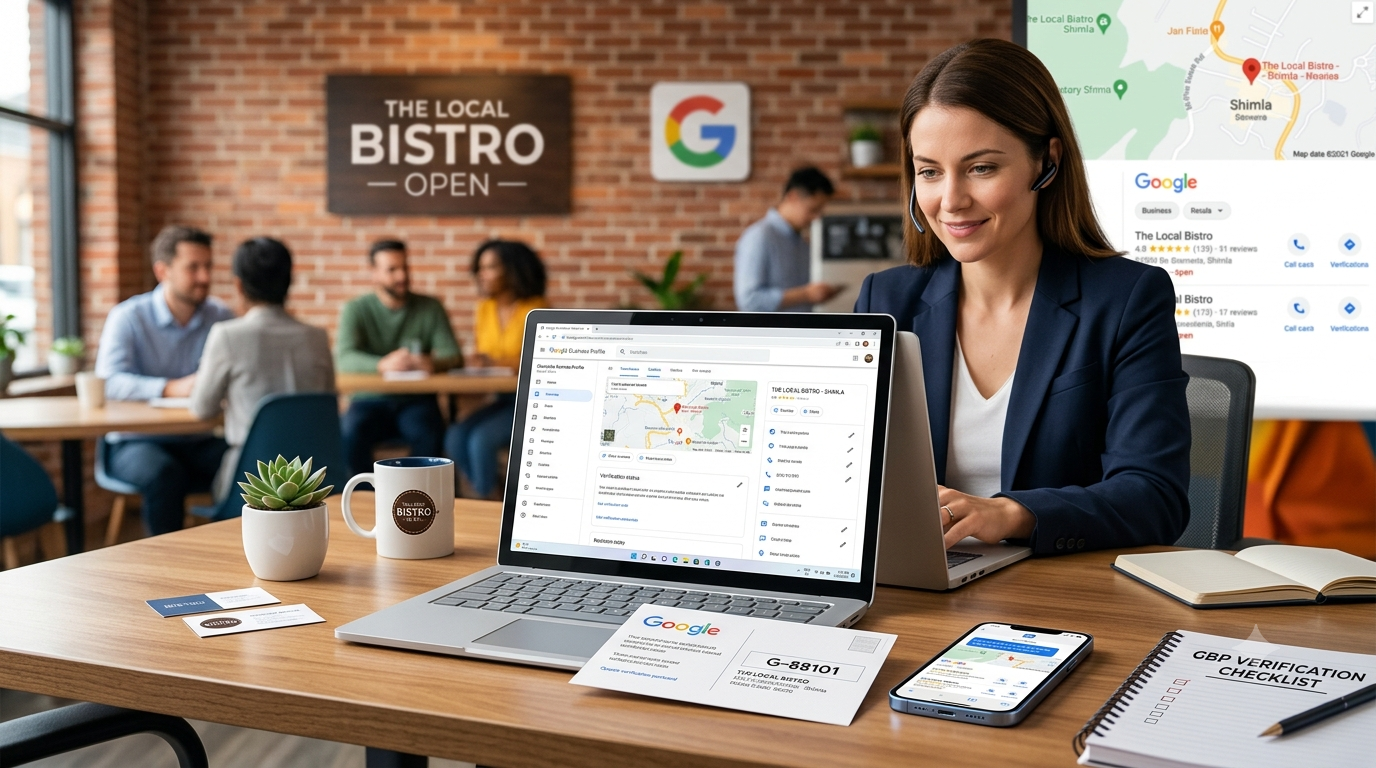
Google My Business verification—formerly known as Google My Business—is the essential process of proving ownership or authorization to manage a business listing on Google Search and Google Maps.
Without verification, your business will struggle to rank in local search results. You will also be unable to update your business hours, reply to customer reviews, or access valuable performance analytics.
Key Takeaway: Verification is 100% free and is required for any business that wants to appear in Google’s “Local 3-Pack” and manage its digital reputation.
What Is Google Business Profile Verification?
Source: Search Engine Journal
Verification confirms that the individual claiming control over a business listing is authorized to represent that organization. Google enforces this step to:
- Prevent Spam & Fraud: Protect consumers from fake listings and scams.
- Shield Business Owners: Prevent unauthorized edits or hijackings by competitors.
- Maintain Data Accuracy: Ensure information shown across Google Maps and Search is reliable.
Once verified, you gain full administrative control over your listing, allowing you to update business hours, list services, upload photos, publish Google Posts, and engage with customer reviews.
Who Needs to Verify Their Profile?
You must complete verification if you fall into any of the following categories:
- New Businesses: You created a new listing and need to make it public.
- Unclaimed Listings: You are claiming an existing profile already appearing on Google Maps.
- Agencies & Marketers: You are managing local listings on behalf of a client.
- Multi-Location Brands: You operate multiple storefronts or service areas that require separate listings.
Verification applies to Storefront Businesses (e.g., bakeries, retail shops), Service-Area Businesses (e.g., plumbers, roofers), and Hybrid Models (e.g., a restaurant that also offers catering/delivery).
Google Verification Methods at a Glance
Google determines your available verification methods based on your business type, region, risk factors, and existing digital footprint.
| Verification Method | Best For | Typical Turnaround | Cost |
| Postcard | Most traditional businesses | 5–14 business days | Free |
| Phone / SMS | Select eligible businesses | Instant | Free |
| Select eligible businesses | Instant | Free | |
| Search Console (Instant) | Sites verified in Google Search Console | Instant | Free |
| Video Recording | Service providers & specific categories | 2–5 business days | Free |
| Bulk Verification | Brands with 10+ locations | Varies | Free |
Step-by-Step Verification Instructions
Method 1: Postcard Verification (Most Common)
Source: Google Help
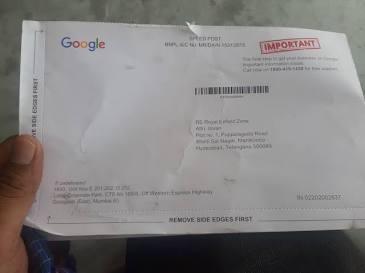
Postcard verification remains the standard method for most local businesses.
- Sign In: Go to Google Business Profile and log in with your primary business Google account.
- Select Listing: Choose your business, or click Add your business to Google if it isn’t listed yet.
- Fill in Details: Enter your official business name and category.
- Choose Postcard: Select Postcard when prompted for your verification method.
- Confirm Address: Double-check your physical address for exact spelling and unit numbers.
- Request Mail: Click Mail postcard. Google will ship a postcard containing a 5-digit verification code.
- Wait for Delivery: Allow 5 to 14 business days for the postcard to arrive.
- Enter Code: Return to your GBP dashboard, enter the 5-digit code, and click Submit.
Critical Warning: Do not edit your business address or business name while waiting for the postcard, and do not request a new card. Doing so will invalidate the original code and reset your waiting period.
Method 2: Phone or Email Verification (Instant)
If your business qualifies, Google may offer instant phone or email verification during setup.
- Look for Verify by phone or Verify by email during profile creation.
- Select your preferred method.
- Google will immediately send a verification code via an automated call, SMS, or email.
- Enter the code in your dashboard and click Submit.
Method 3: Instant Verification via Google Search Console
If your website is already set up and verified in Google Search Console, you may qualify for automatic instant verification.
- Ensure you are signed in to Google Business Profile with the exact same account used for Google Search Console.
- Select your business in the GBP dashboard.
- If eligible, click Instant Verify.
- Google will match your domain with your business profile and approve your listing instantly.
Method 4: Video Recording Verification

Source: Enspire For Enterprise
Google increasingly requires video verification for higher-risk categories or service-area businesses to prove physical operations.
- Select Video recording in your GBP dashboard.
- Record a continuous, unedited video that clearly shows:
- Location & Exterior: Outdoor signage, street address, and surrounding area.
- Equipment & Inventory: Office/storefront interior, branded vehicles, tools, or POS systems.
- Proof of Management: Opening employee-only areas, operating cash registers, or unlocking doors.
- Upload the video via the desktop dashboard or mobile device as prompted.
- Google will review the submission within 2 to 5 business days.
Method 5: Bulk Verification (10+ Locations)
If you manage a brand or franchise with 10 or more locations, you can verify them simultaneously rather than individually.
- Prepare a standardized spreadsheet containing all location details (names, physical addresses, phone numbers, contact persons).
- Navigate to your GBP dashboard and open the Bulk Verification Request Form.
- Submit the request and wait for Google’s verification team to conduct a manual review.
- Follow any follow-up instructions sent by Google to complete the batch approval.
Managing a chain or franchise? Read our complete strategy guide on Google Business Profile for Multiple Locations.
Pre-Verification Checklist
To avoid delays, rejections, or suspensions, ensure your listing meets these guidelines before requesting verification:
- [ ] Exact Business Name: Matches your physical signage, registration documents, and website.
- [ ] Physical Address: Accurate and formatted correctly. No P.O. Boxes, UPS Stores, or remote virtual offices.
- [ ] Local Phone Number: Use a primary local landline or mobile number rather than a call-tracking line.
- [ ] Accurate Category: Select the single primary category that best reflects your core business.
- [ ] Active Website: Ensure your landing page URL is live, secure (HTTPS), and accessible.
What Happens After You Get Verified?
Once approved, your listing goes live to the public. You can now:
- Manage Profile Information: Update regular/holiday hours, services, and business descriptions.
- Engage Customers: Reply to customer reviews and answer Q&As.
- Publish Content: Upload photos, create offers, and share updates via Google Posts.
- Track Analytics: Access GBP Performance Insights to see how customers discover you (search keywords, calls, driving directions).
- Rank in Local Search: Appear in Google Maps and local search results.
Next Steps: Maximizing your visibility requires active optimization. Read our guide: Google Business Profile Optimization: The Complete Guide.
Troubleshooting: Common Issues & Fixes
| Issue / Error | Likely Cause | How to Fix It |
| Postcard Never Arrived | Address errors or postal delays | Wait 14 full days. Verify address accuracy in dashboard, then click Request another code. |
| Code Invalid / Expired | Code entered incorrectly or a newer postcard was requested | Double-check for typos (including leading zeros). If expired, request a new verification code. |
| “Verify” Button Missing | Listing is already verified, suspended, or under review | Check account status. If suspended, submit a formal reinstatement request via the help center. |
| No Phone/Email Option | System flagged account for manual verification | Phone/email options are automated. If unavailable, proceed with Postcard or Video verification. |
| Profile Suspended | Violation of GBP guidelines (e.g., keyword stuffing in title) | Correct non-compliant information and submit a official Reinstatement Appeal Form. |
Frequently Asked Questions (FAQ)
How long does Google Business Profile verification take?
Verification speed depends on the method:
- Phone / Email / Instant: Instant
- Video Recording: 2 to 5 business days
- Postcard: 5 to 14 business days
Is verifying a Google Business Profile really free?
Yes. Google does not charge any fees to create, verify, or manage a Google Business Profile. Be cautious of third-party scams charging mandatory “Google verification fees.”
Can I verify my business without a postcard?
Yes, but only if Google offers an alternative method (Phone, Email, Instant Search Console match, or Video Recording) during setup. You cannot manually choose these methods if Google defaults to postcard.
Does Google Business Profile verification expire?
No. Once verified, your status remains permanent unless you change major business details (like your address), transfer account ownership, or violate Google’s guidelines resulting in suspension.
Related Resources & Guides
- Google Business Profile Optimization: Complete Guide
- How to Set Up a Google Business Profile Account From Scratch
- Managing User Roles & Permissions in Google Business Profile
Ready to Grow Your Local Reach?
Completing your verification is the critical first step toward dominating local search results and driving traffic to your business.
Have questions about setting up or optimizing your listing? Let us know in the comments below, or explore our complete local SEO guides to get started!